


Once upon a time, Windows was often subject of frequent reports of major attacks
by viruses and hackers. With the release of Windows 7, Microsoft started to get its
security act together, this improved in Windows XP SP2 and nowadays Windows 11 is
the most secure system to date.
While Windows 11 offers a great deal of security, it also includes features that
monitor your computer usage in order to both “adapt Windows to your usage” but also
to expose you to personalized advertising.
Fortunately, this can be adjusted using
various settings and in this guide we’ll show you how to increase both the security
and privacy of your computer.
Login and accounts
A screen lock is a must-have for laptops. Many models support fingerprint and facial recognition, but all can choose a password or PIN. Here’s how to set it up:
Open the Settings > Accounts > Login options. Select the one you want to use and follow the instructions.
Make it even more secure
You can make your login more secure by using only a high-security login method:
Open Login Options and switch on the following: For improved security, you should only allow Windows Hello sign-in for Microsoft accounts on this device.
You may also automatically lock your computer
When you walk away from your computer, you can lock it using the keyboard shortcut Windows + L but you may also let it lock automatically.
Open the Login options, go to When should Windows require you to log in again if you have been away from your computer?, and select Time from the menu on the right.
You may also enable Dynamic lock. This means that if you have paired your computer with a pair of head-phones or another Bluetooth device, you may lock your computer when the pairing is broken, like: when you walk away from your computer.
Integrity and local accounts
Windows 11 works best if you’re logged in with your Microsoft account, but some claim
that you may reduce monitoring by using a so-called local account, This is not enirely
true! Windows Privacy settings work the same no matter if you use a Microsoft account
or not! BitsInPcs installation guide allows you to ALWAYS create local user accounts
from the start, a user account that you later on should connect to your Microsoft
account in the proper way!
But BitsInPCs let you decide what you do!
TURN OFF Windows Ad ID
Microsoft “monitors” your usage to customize advertising to your interests, but this can easily be turned off.
Go to Settings menu>Privacy and Security>Windows permissions>General information. Here you should disable the feature Allow apps to show customized ads using my advertising ID. You can also control other things that affect Windows privacy from here. This put a dent in the attempts to create personalized advertising, however the BitInPCs installation help guide helps you to perform the same in your browser as well (often forgotten by most)
Share less information
You can choose what information Windows can access. By limiting it, you increase your privacy, but also lose some functionality.
Open the Settings menu>Privacy and Security>Windows permissions. Here you can stop sharing information related to speech recognition and handwriting features. You can also remove your feedback to Microsoft and the monitoring of your own history. In addition, you can customize your searches. Turn on or off Widgets etc.
You may Control your apps
Individual apps may have access to things like the camera, microphone, and your exact
location. You can control these things through App Authorization. Open the Settings>Privacy
and Security>App permissions. Click on the function you want to control. You may
easily choose which individual apps get which permissions. Please do NOT turn positioning
off, Apps like Weather and FIND MY DEVICE rely on the positioning being active!
If
you’re curious about what private information an app has used, scroll down to Recent
activities to see the week’s history.
Control Device usage
Through the Device Usage feature, Microsoft customises the system and advertising to your habits, but you can opt out. Open Settings>Customization>Device usage. Open it and trigger the Off position on everything there.
What about the “tips” Some Microsoft ‘tips’ are falsely perceived by many as advertising, but as always you can switch them off for good. Go to Preferences>System>Notifications. Scroll down to Additional settings and remove the functions you do not want to use.
Anti-virus or anti-malware programs
Windows 11 has a built-in security program called Windows Defender. It will automatically be enabled if you are not running any 3rd party security software. However, Defender is not as reliable as other security software, so you should opt for some third-party security software. And if you log into your computer with an account that has administrator rights, then Defender does virtually NOTHING to protect you, any malware can easily bypass Defender, add exceptions, etc. So, if you sign in as an administrator, its protection features are totally unreliable! However, under Windows Security, there are some important features that only work if you don't use third-party antivirus software. So they're pretty useless, since you should use third-party security software (which handles all of these settings better than what Defender might be able to handle anyway!)
Find a missing (or stolen) computer
Windows 11 has a feature to help you find a device that has gone missing. With internet and location enabled, you can see where it is and you can have it ring loudly, allowing you to find it with ease. You can also send messages to the finder and, in the worst case, delete sensitive information.
Switch on the feature via Settings>Privacy and Security>Find my device. If your device has disappeared, go to account.microsoft.com/devices on any device and sign in with your Microsoft account. Locate the correct device in the list and tap Find my device. A really good feature that most people seem to not know of!
BitsInPCs help you to stop using the dangerous Administrators account, while maintaining all your administrative abilities, and to set all privacy settings to the correct ones that not only minimizes the ability for personalized advertising. But what BitsInPCs also does is to tell you how to minimize ALL PERSONALIZED ADVERTISING IN YOUR BROWSER and, if that was not all, BitsInPCs help you to install an ADBLOCKER that actually works without ruining your browsing experiece!
NO OTHER INSTALLATION GUIDE ON THE INTERNET DOES EVEN HALF OF WHAT BitsinPcs DOES FOR YOU! AND WE DO ALL THIS FOR OLNY: US$14 or €14!
Let's get rid of a large number of MYTHS regarding Windows, Windows 11 and its security
and privacy!
There are to many people out there that claim that Windows 11 has poor
security and poor privacy!
Little do they know that the Windows 11 security is excellent,
IF YOU DO STOP USING A USER ACCOUNT WITH ADMINISTRATORS RIGHTS! And if you SET THE
CORRECT PRIVACY SETTINGS IN WINDOWS you may easily avoid all spying etc. without
the use of “privacy softwares”!
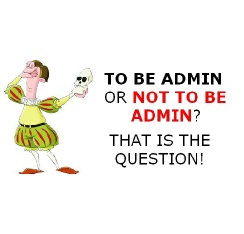



In every operating system in the world, safety is only achieved by not using administrative
rights in your day to day user-account!
This is also true in Windows, although most
people do think that they MUST sign in with an administrators account in order to
be able to handle the softwares, games or computers-settings.
BitsInPCs aim to show
everyone how it’s actually done!
This way BitsInPCs installation help guide does a few more steps than the ordinaly laymans installation of Windows.
But it’s these extra steps that makes your PC to keep it’s initial performance for
years, To hinder most viruses, trojans etc. out there from ruining your computer!
And
as a benefit you get maximum stability.
That means your Windows will work as Windows
is intended to work, FASTER, SAFER AND MORE RELIABLE!